Docker keeps data in the named volume bestnav_data (mounted at /app/data, no external database); run docker volume inspect bestnav_data to find the host path. Native installs (fnOS fpk / Synology SPK) use the data dir chosen at install time. Key contents:
settings.json / auth.json: bookmark & card config, themes, user table and password hashes
file_index.db: SQLite index for local file search (rebuildable, not source data)
.secrets: encryption keys (session JWT / local API-key encryption / license signing) — only on your server
Lose .secrets and every locally encrypted API key / password / credential becomes permanently undecryptable — include it in every backup.
Three Layers of Backup
Stack these three layers as needed:
1) Built-in backup (free): Settings → Data → Create Backup packs accounts, bookmarks, cards, integration settings, encryption keys, plus the relay providers, issued tokens and a consistent snapshot of the request ledger in one click; optionally add texts, shares and uploaded files into a single zip that fully restores on re-upload. JSON backups keep the last 7, each file-based zip keeps 3, all downloadable
2) Scheduled auto backup (Pro): automatic backups to data/backups every 6 / 12 / 24 / 72 / 168 hours, with last-run status and a Run Now button
3) WebDAV offsite backup (Pro): push config backups to Jianguoyun / Nextcloud-style WebDAV storage — recover even after total device failure; when a write fails the message names the HTTP status, the actual upload target and your current backup folder instead of a bare 405/403
Add a server-level safety net by tarring the whole data volume on a schedule (daily at 3:30, keep 7 days):
Backups contain password hashes and keys (file mode 0600) — never expose backups/ over the Web or to other users.
Diagram: the three layers stack — built-in for daily use, scheduled for when you forget, off-site for when the box dies; all three feed the same restore entry.
If a file disappears or cannot be read mid-pack it is skipped and logged while the rest of the backup still completes — one unreadable file no longer fails the whole run
A zip with zero entries from empty upload folders is a valid backup, not a corrupt one
Scheduled backups show their last run time and status in the panel, and Run Now is always available when you do not want to wait for the next cycle
Restoring
Click Restore in the Settings → Data backup list, or upload an external JSON / zip backup; a confirmation step is required first.
Restore overwrites current config — create a fresh backup of the present state first as a rollback
After restoring a backup that contains keys, existing sessions may expire; just sign in again
Full-volume disaster recovery: stop the service → docker run --rm -v bestnav_data:/data -v /opt/backups:/backup alpine sh -c "cd /data && tar xzf /backup/" → start again
Upgrading
Image upgrade = pull the new image and recreate the container. The named volume is never touched:
Bashcd ~/bestnav
# 1. back up first (Settings → Data → Create Backup, or the volume script above)
# 2. pull the new image and recreate
docker compose pull && docker compose up -d
# 3. verify
curl -s http://127.0.0.1:10788/api/health
If image: pins a specific version tag, bump it (or use latest) before pulling
Upgrading from the legacy tar.gz layout (Model A): copy data from the old mounted dir into the new named volume (docker cp or a temporary alpine container) first
fnOS: update in the fnOS App Center (data preserved), or replace server/bestnav in the app dir and run sudo systemctl restart bestnav
Synology SPK: download the new SPK from the site and manual-install it in Package Center — it upgrades in place and keeps your data, no uninstall needed
Synology Container Manager / QNAP / ZSpace (container): same as the Docker steps above
For major versions, read the breaking-changes notes first; if anything looks off after upgrading, restore the pre-upgrade backup from Settings → Data.
Migrating to a New Device
Migration is really just moving your data (must include .secrets). The built-in backup zip is the easiest cross-platform way:
Old device: stop the service, export a zip via Settings → Data → Create Backup (or tar the named volume) and transfer it
New device: start the new container per Installation, then import the zip via Settings → Data → Restore
Whole-volume move: docker run --rm -v :/data -v /path/to/backup:/backup alpine sh -c "cd /data && tar xzf /backup/"
Start and verify health before switching traffic
Update PUBLIC_URL and the reverse proxy; open the port in firewall / security groups
Pro licenses bind to a hardware fingerprint: re-activating on the same machine after an OS reinstall restores automatically; device changes require contacting support.
Routine Checks
Health: docker compose ps should show healthy/up; curl http://127.0.0.1:10788/api/health should succeed
Disk: watch ./data growth — backup zips, uploaded backgrounds and the file index are the main consumers
Volume writable: if pages error or login fails, check volume permissions (the named volume ships with uid 1000 ownership; for bind mounts chown 1000:1000 the host dir)
Port conflict: change compose ports, then recreate the container
No search results: the file index is rebuildable (Settings → Data → Rebuild Index) — index loss is not data loss
For per-platform logs, admin password reset and the encryption-key deep dive, see Troubleshooting & Ops.
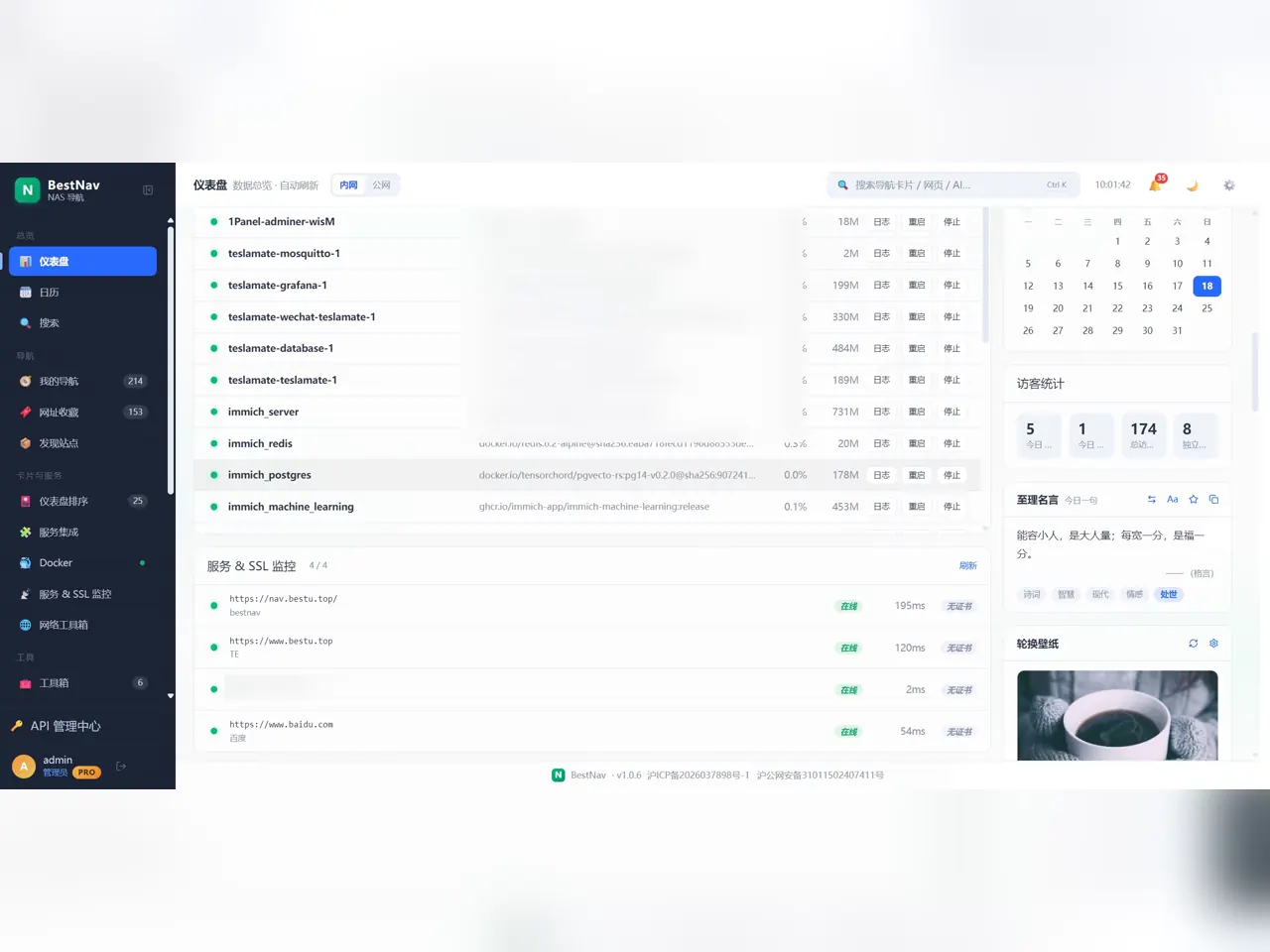
Diagram: the daily sweep fits one Console screen — containers and their resource use on top, service and SSL monitoring with online state and response times below.